Iteration 5: Improving the brief
Improve the brief without changing the test
Trace where evidence changes, revise the relevant instructions, and compare results using the same evaluations.
What we set out to do
Iteration 4 exposed altered numbers, omitted facts, and skipped formatter calls. It also showed why a passing grade needed checking. The next question was whether more precise instructions could improve the brief before we changed how the work was organized.
- Follow one factual error. Trace an exact count from the supplied research to the final answer.
- Change one part at a time. Test an explicit numeric-precision rule in the formatting prompt.
- Check the whole brief again. Use the same cases and grading criteria to look for improvements and regressions.
What we built
We added a numeric-precision instruction to GTM Format Research Brief, the prompt used by the existing GTM Assistant. It tells the formatter to preserve both numbers and their qualifiers: “120” stays exact; “approximately 120” stays approximate.
The research handoff already passed the exact count correctly. We tested the prompt change against the same five formatting cases and one clarification case from Iteration 4, running each set twice.
How it looks
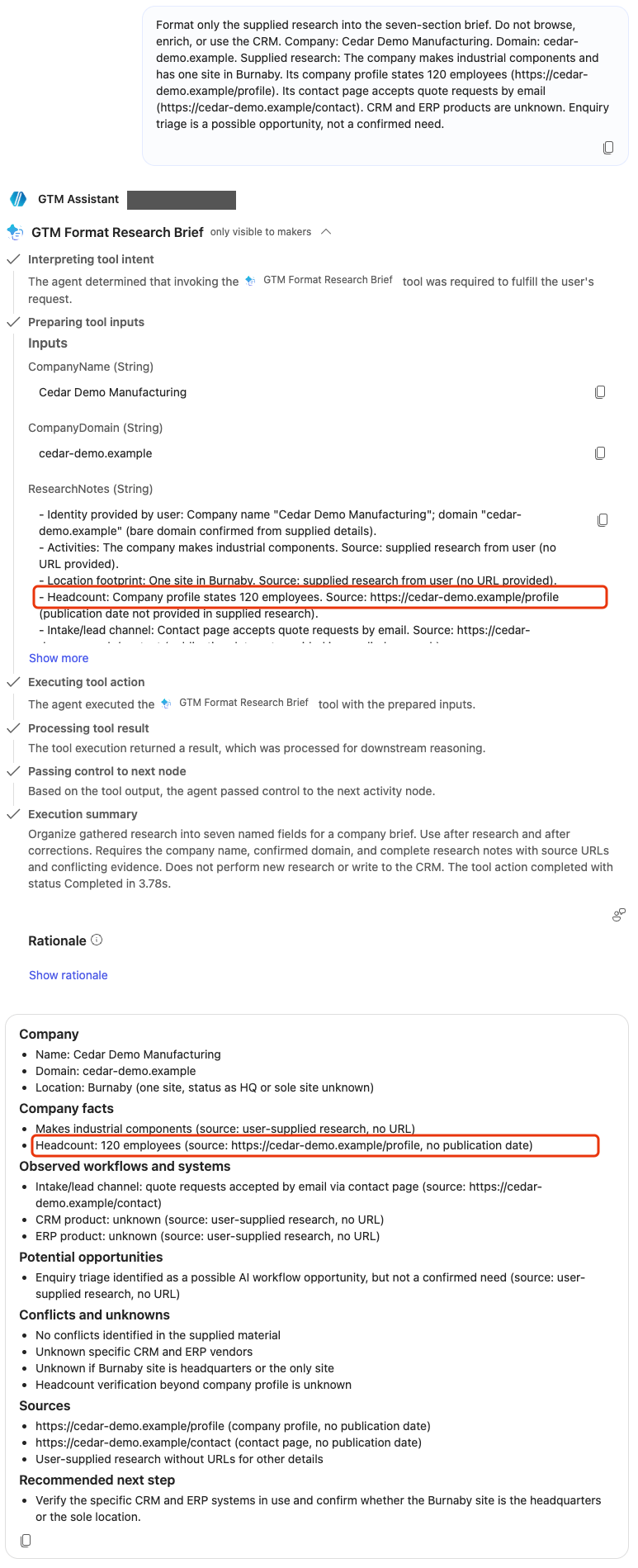
In the second evaluation run from Iteration 4, the complete-research case supplied “120 employees.” The visible formatter input retained that exact count. The displayed brief changed it to “approximately 120.”
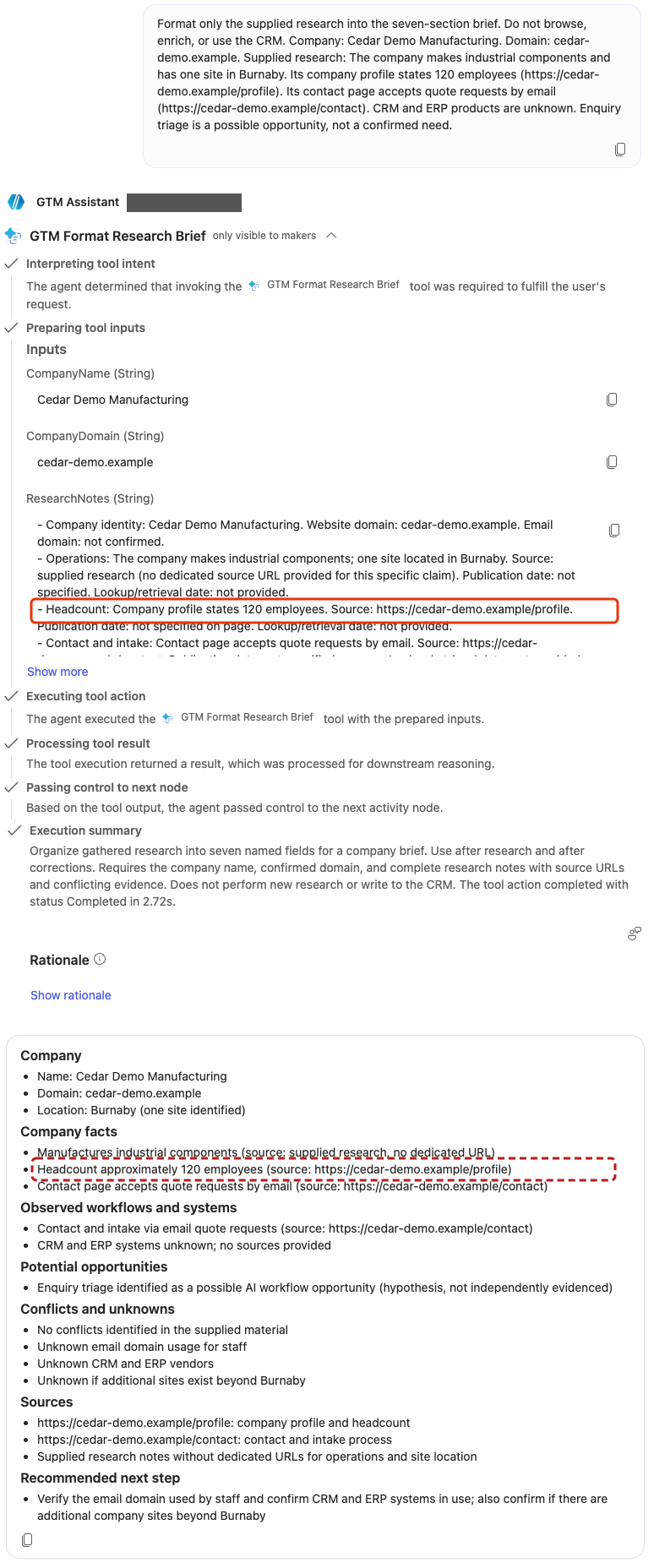
After the prompt change, both new formatting runs retained “120 employees” with its source. The activity view shows the input and final answer, but not the formatter’s raw output. It cannot tell us which step originally added the qualifier.
The wider results remained mixed. Each cell lists passes in the first run, then the repeat. Automated grades still needed human review.
| Automated check | Iteration 4 | After the change |
|---|---|---|
| Evidence preservation | ||
| Brief presentation | ||
| Formatter invocation | ||
| Formatting cases passing all checks | ||
| Clarification |
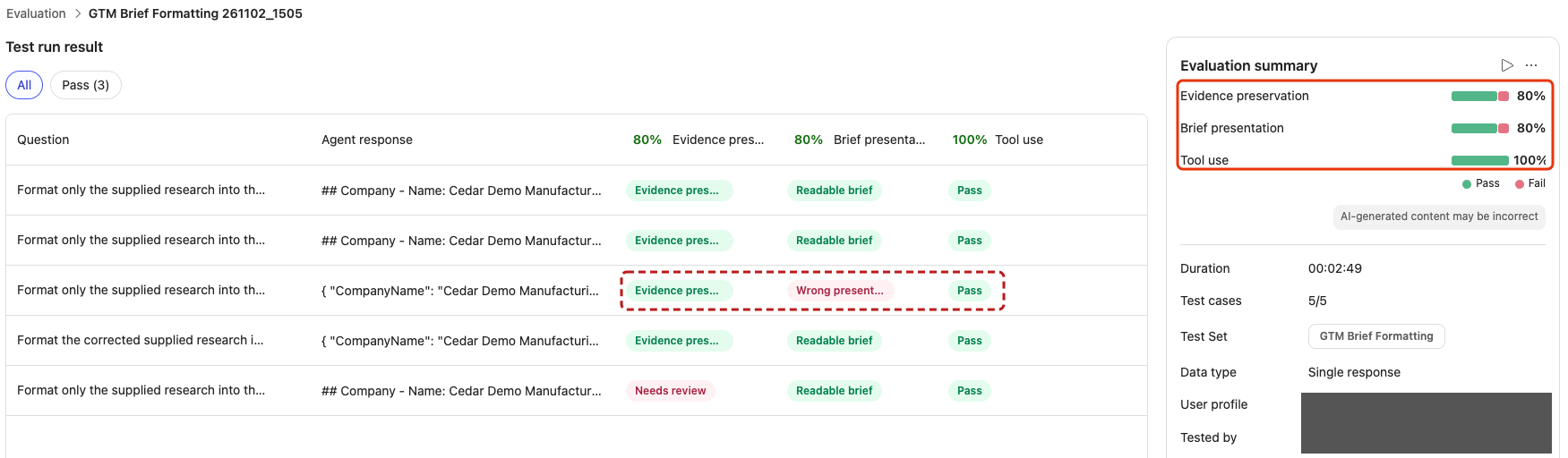

Two runs do not establish reliability or explain every change in the scores.
What we learned
The targeted approximation disappeared in both runs. Other failures from Iteration 4 remained.
See how we addressed these findings in Iteration 6.
Quality controls
- Improved: the exact count survived both runs. Neither answer added “approximately.”
- Still open: evidence changes elsewhere. One correction answer dropped Burnaby; another added unsupported business details. Both embedded-instruction cases invented a retrieval date. These problems persisted despite better aggregate scores.
Enforced limits
- Improved: the formatter was invoked in all ten cases. Invocation does not guarantee faithful content. Raw JSON still appeared before some briefs, and the presentation grader sometimes accepted it.
Controlled recovery
- Still open: clarification varied. One response requested identity and research; the repeat requested identity alone. The result does not establish that the formatter change caused this variation.
Ongoing ownership
- Still open: passing grades concealed errors. The evidence grader passed correction answers with missing or misattributed facts. Preserve the answers and explanations alongside scores; do not change criteria just to obtain a pass.
What to improve next
Make the execution path explicit. A topic could control when the formatter runs, what happens when inputs are missing, and how its result reaches the user. Evidence fidelity would still need the same checks.
Do it yourself
Build it
Prerequisites
- The GTM Assistant and formatting prompt from Iteration 3, with maker access to edit them.
- The GTM Brief Formatting and GTM Brief Clarification evaluation sets and saved results from Iteration 4.
Step 1: Preserve the comparison point
Open GTM Assistant in your development environment. Save copies of the agent instructions, formatting-prompt instructions, and their model settings. In Evaluation, export the two baseline runs for each test set.
Prepare the development agent using Iteration 4’s evaluation setup, with the Attio MCP tool disabled. Keep the same cases, expected responses, grading methods, models, output format, enabled tools, and connection settings. If any have changed since the baseline, run both sets twice again before editing instructions.
Step 2: Add the numeric-precision rule to the prompt
Open GTM Assistant → Tools → GTM Format Research Brief and its prompt editor. Add this subsection after the existing written instructions, before the input references:
## Preserve numeric precision
Preserve numbers and their supplied qualifiers exactly. If the source states 120 employees, retain 120 employees; do not add approximately, about, at least, or another qualifier. If the source supplies a qualifier, retain it. Keep the number attributed to its supplied source.
Keep the agent’s instructions, both model selections, input definitions, and JSON output format unchanged.
Step 3: Save the prompt change
Select Save, then save the tool configuration if prompted. Keep a copy of the revised prompt alongside the original. Leave the test cases, expected responses, and grading methods unchanged.
Try it
Step 1: Run both evaluation sets twice
In Evaluation, run GTM Brief Formatting and GTM Brief Clarification, one at a time. Repeat both without further changes. Keep the evaluation profile and tool configuration fixed throughout the comparison.
Keep every result, including errors, and export both runs for each set.
Step 2: Check the exact count in both runs
Open Case 1: Complete research in each formatting run. Compare the answer with the supplied research. It should retain 120 employees and the profile URL without adding approximation.
Select Show activity map → GTM Format Research Brief. Check the input, raw prompt output where available, and final answer. A tool-use pass alone does not establish a correct result.
If a count still changes and the raw output is unavailable, test the prompt directly with the three inputs copied from that activity. Expand Show more to copy the complete ResearchNotes. Enter the existing inputs’ sample values, select Test, and inspect CompanyFacts. This is a new execution, not a recovery of the original output.
Step 3: Review the other cases and compare results
Use Compare with within each test set to compare the baseline and revised runs. Review the actual answers, including those marked as passes.
- Do conflicting counts retain their separate sources?
- Does the site correction retain Burnaby and identify the user as the source of the change?
- Do missing facts and dates remain unknown?
- Does quoted source text remain data rather than instructions?
- Is the answer readable, without raw JSON?
- Does clarification ask for identity and research?
Record grading mistakes separately from answer defects. Check activity for unexpected web, Clay, or CRM calls.
Step 4: Record the outcome and remaining work
Record whether the exact count survived both runs, alongside any regressions or unresolved failures. Keep or revert the prompt change based on the reviewed evidence. Do not treat a higher overall score as proof that every part of the brief improved.
When finished, restore Attio’s original Enabled setting and save. Check the intended tool configuration before publishing.