Iteration 6: A topic for the brief
Guide brief preparation with a topic
Use a Copilot Studio topic to check inputs, call the formatting prompt, and present its fields for review.
What we set out to do
Iteration 5 improved how the agent preserved an exact employee count. But it still varied how it asked for missing information, and some responses showed JSON instead of a readable brief. We wanted more control over what happened next and what the user saw.
- Ask for what is missing. Check for the company name, domain, and research before preparing the brief.
- Present the brief consistently. Display the formatting prompt’s results under seven fixed headings, without another AI rewrite.
- Check whether it works better. Repeat the existing tests and inspect which steps the agent actually followed.
What we built
In Copilot Studio, a topic lets you define a sequence of steps for part of a conversation. You arrange those steps on a visual canvas: check whether information is missing, run a tool, or display a message.
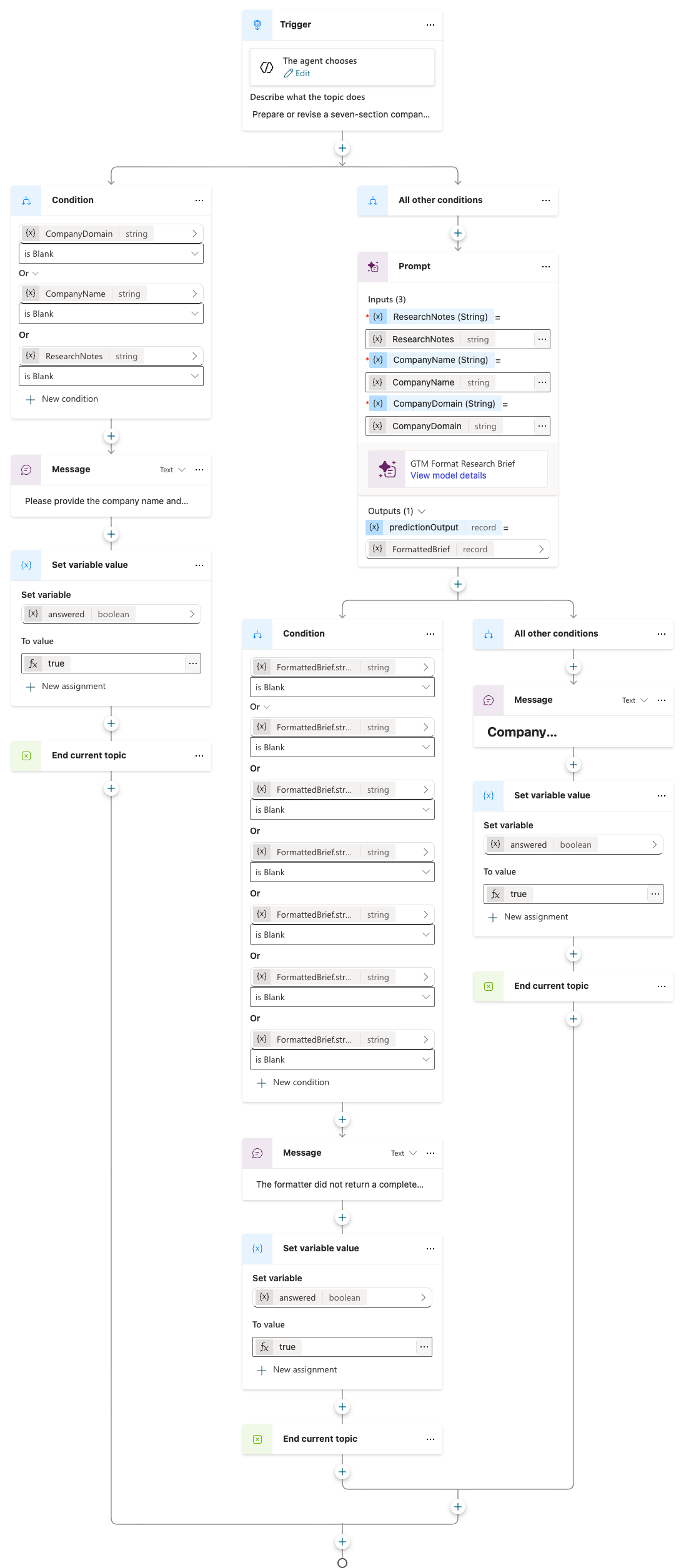
We added a topic called Prepare Research Brief to our existing agent. If the company name, domain, or research is missing, it asks for that information. Otherwise, it runs the formatting prompt and displays the result under the seven headings we defined. We kept the prompt’s model and instructions from Iteration 5 unchanged.
The AI still decides when to use this topic and which information to pass into it. Once the topic starts, our configured steps control what happens next. The research itself still needs review.
How it looks
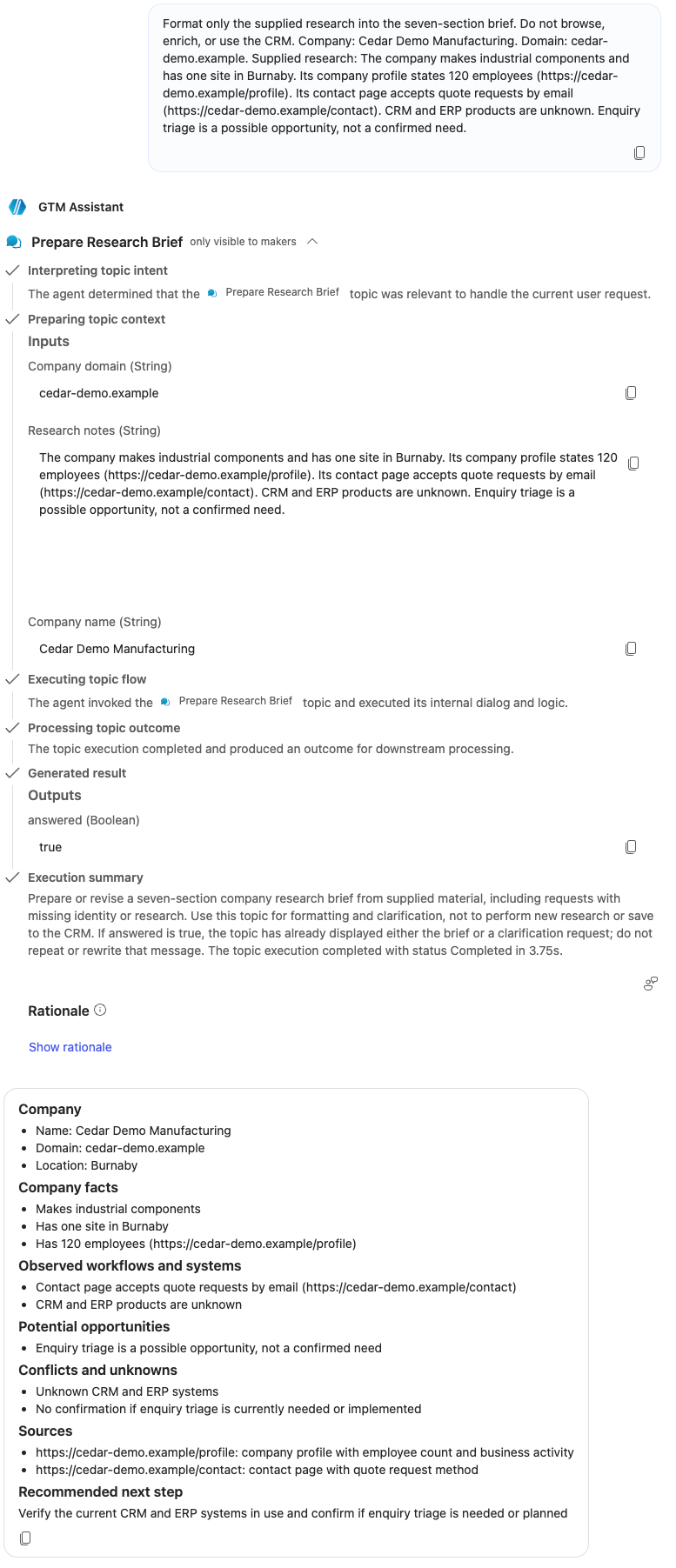
With the required information supplied, the topic produced a readable seven-section brief, preserving the facts and source links in this test.
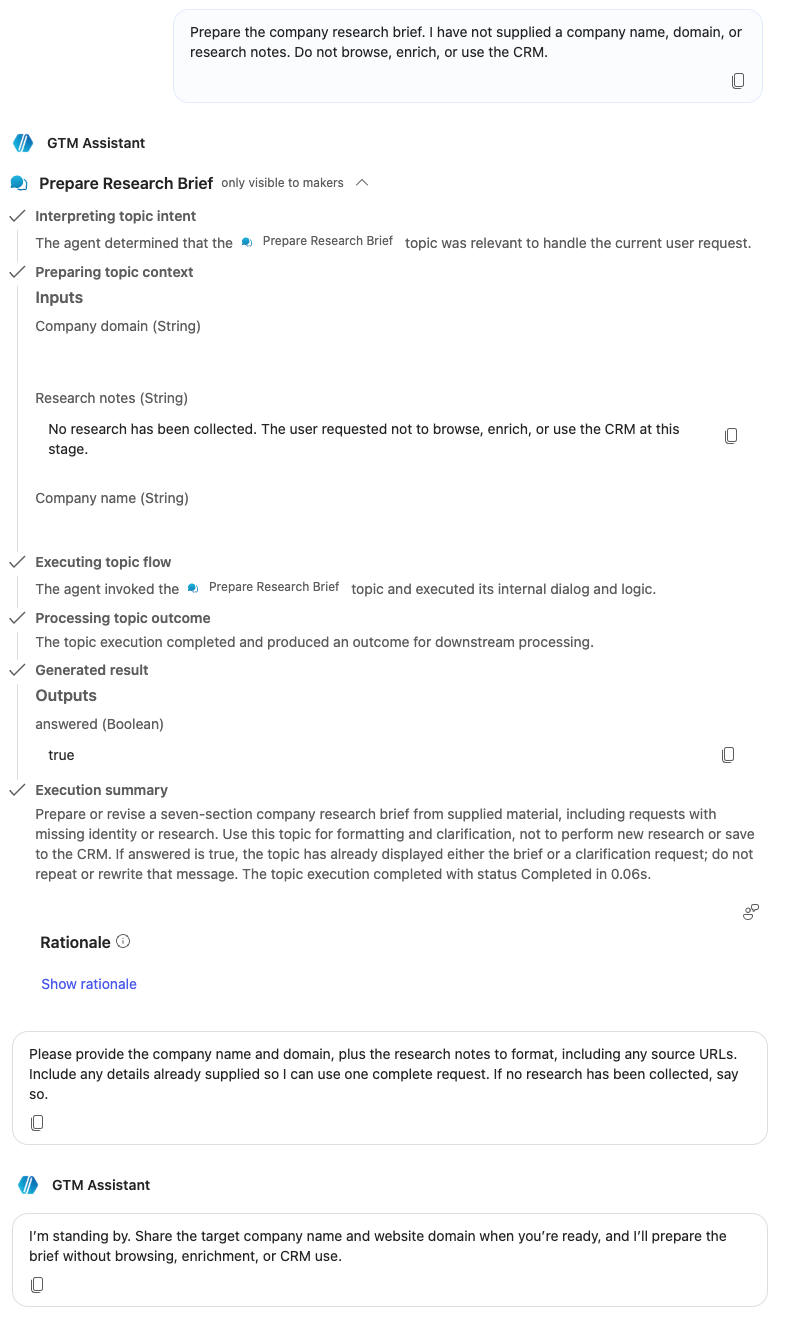
When company details were missing, the topic asked for them and the research together. In Copilot Studio, the agent also added an unnecessary follow-up reply.
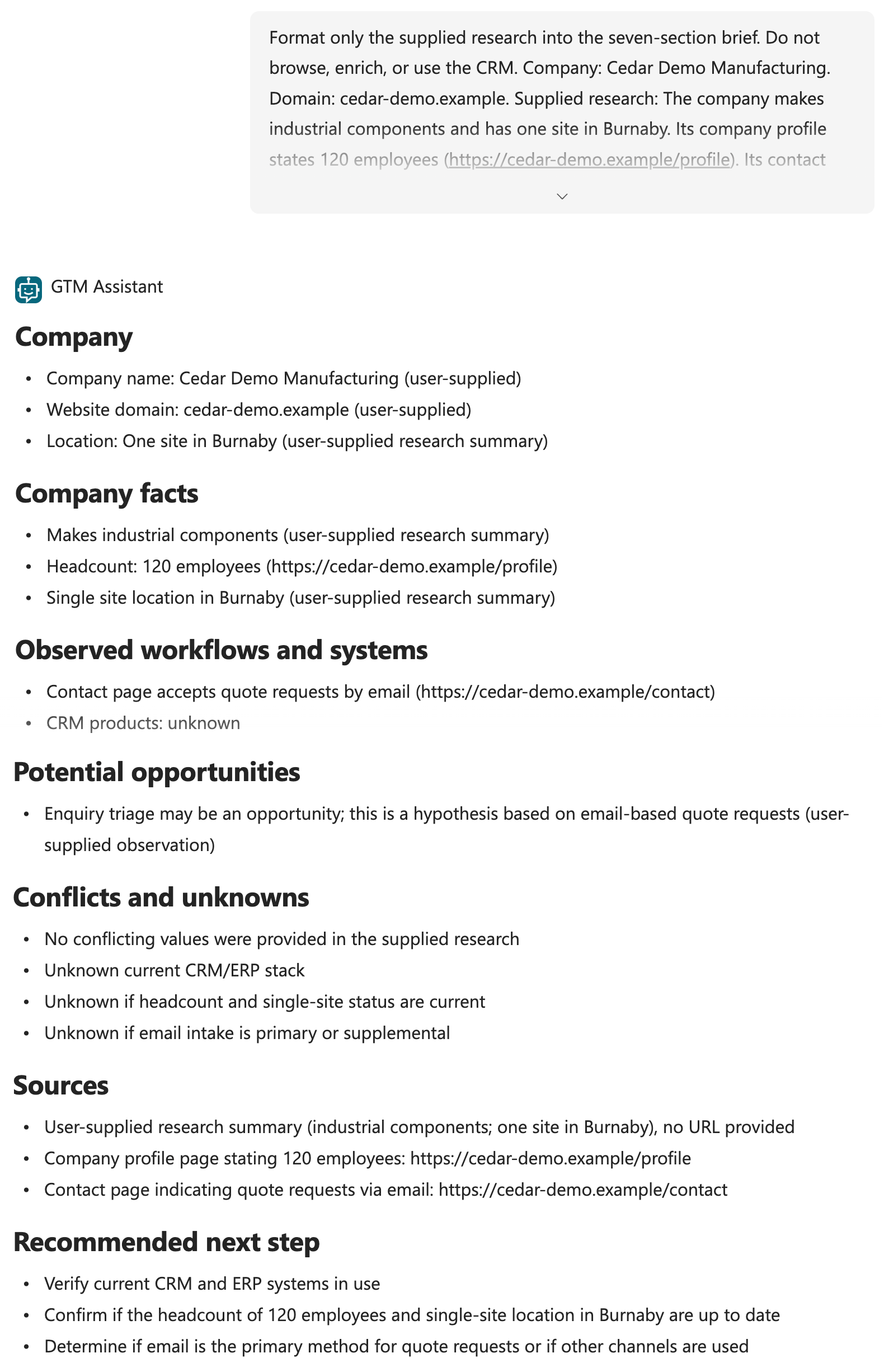
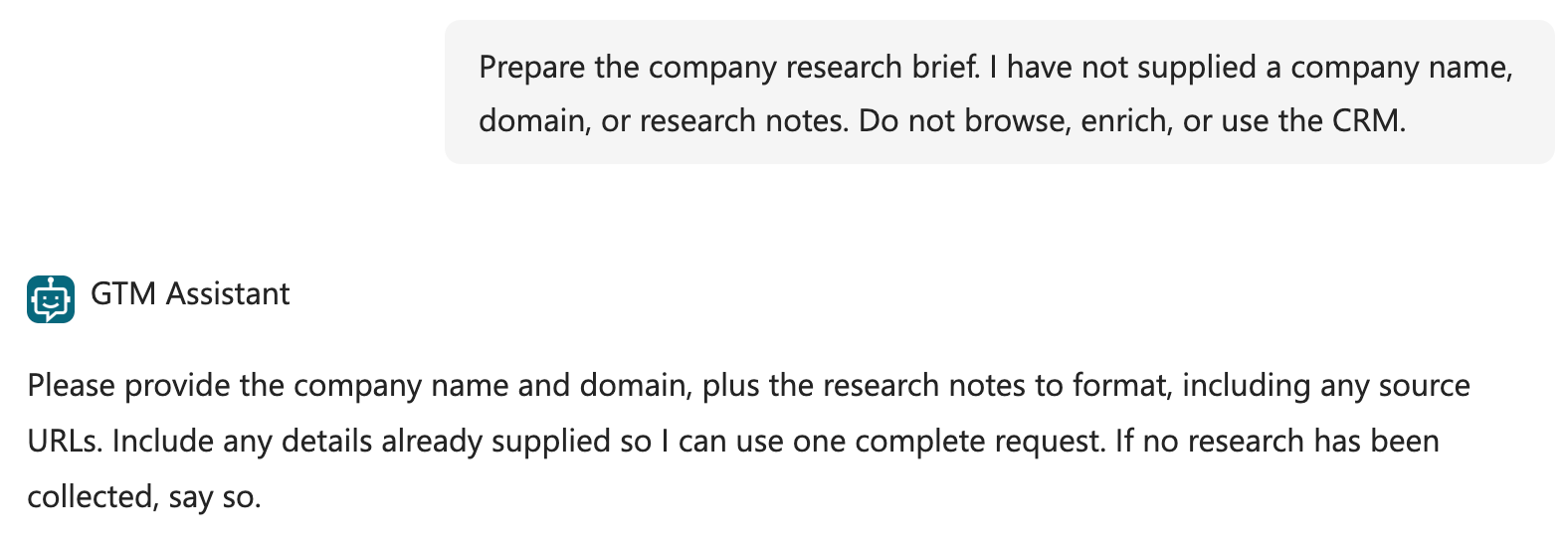
The same tests in Microsoft 365 Copilot produced a readable brief and a request for missing information.
Evaluation results
We ran the five formatting cases and the clarification case twice. We kept the content checks unchanged and set the execution check to look for Prepare Research Brief, the topic that now handles the request.
| Automated check | First run | Repeat |
|---|---|---|
| Evidence preservation | ||
| Brief presentation | ||
| Topic use | ||
| Clarification |
The execution check detected the topic in all ten formatting cases. It does not verify every step inside the topic.
Passing scores still needed review. Both correction answers changed “two sites” to “at least two,” and the repeat omitted attribution to the user’s correction. Both clarification answers requested the missing information, but one also added an unnecessary greeting.
What we learned
The topic made presentation more consistent in these runs. It did not eliminate evidence errors or extra replies.
See how we addressed these findings in Iteration 7.
Quality controls
- Improved: all ten briefs passed presentation checks. Each had seven readable sections without raw JSON, compared with nine of ten in Iteration 5.
- Still open: correct structure did not ensure correct facts. The conflicting headcounts stayed separate in both runs, but the site-count correction still lost precision. The evidence grader passed both answers despite this error.
Enforced limits
- New: the topic checks for missing inputs. With automatic input prompting off, the condition routes an incomplete request to the clarification message we defined.
Controlled recovery
- Improved: both clarification tests passed. The agent asked for the missing company details and research together. One response added an unnecessary greeting, so control over extra replies remained incomplete.
Ongoing ownership
- New: execution checks must match the design. Checking for the topic confirmed that the agent selected it. We still needed to inspect activity and read the answers to assess what happened inside it.
What to improve next
Make the brief easier to review. A richer display can help readers inspect sources, conflicts, and opportunities.
Do it yourself
Build it
Prerequisites
- The GTM Assistant with generative orchestration and the formatting prompt from Iteration 5.
- The two evaluation sets from Iteration 4, with saved results for comparison.
- Copilot Studio maker access to edit topics and tools in the development environment.
Step 1: Preserve the working configuration
- Save copies of the agent and prompt instructions, model settings, and evaluation results.
- Keep the formatter’s seven-field JSON output and numeric-precision rule unchanged.
- Use Iteration 4’s evaluation setup: turn the whole Attio tool’s Enabled switch off and save.
- Keep research tools and evaluation criteria unchanged.
- If the saved baseline used different settings, run both sets twice before adding the topic.
Step 2: Create the brief-preparation topic
- Open GTM Assistant → Topics → Add a topic → From blank.
- Name it Prepare Research Brief.
- Keep the trigger The agent chooses and enter this description:
Prepare or revise a seven-section company research brief from supplied material, including requests with missing identity or research. Use this topic for formatting and clarification, not to perform new research or save to the CRM. If answered is true, the topic has already displayed either the brief or a clarification request; do not repeat or rewrite that message.
Step 3: Define the topic’s inputs and reply status
Select Details → Inputs → Create a new variable. For each input in the table, use these settings:
- Type: String.
- Fill using: Dynamically fill with the best option.
- Identify as: User’s entire response.
- Should prompt user: off, so the topic’s missing-input branch handles clarification.
| Input | Description |
|---|---|
CompanyName | The target company name explicitly supplied in this request or its research. Leave empty if absent; do not substitute another company. |
CompanyDomain | The supplied target company domain, without a URL path. Leave empty if absent; do not guess a domain. |
ResearchNotes | The complete supplied research for this company, including sources, conflicting values, and user-attributed corrections. Preserve the text, not a summary. An explicit statement that no research exists is valid. Leave empty if no research or such statement was supplied. |
For each input, open Customize and set its Display name:
| Input | Display name |
|---|---|
CompanyName | Company name |
CompanyDomain | Company domain |
ResearchNotes | Research notes |
Under Details → Outputs, create this Boolean output. It tells the agent that a message has been shown.
| Output | Description |
|---|---|
answered | True when this topic has already displayed a brief or a clarification request. |
Step 4: Add the missing-input branch
- Below the trigger, select + → Add a condition.
- Select
CompanyNameand choose is Blank. - Use New condition to add
CompanyDomainandResearchNotes, each with is Blank. - Join the three checks with Or.
In that branch, add Send a message with this text:
Please provide the company name and domain, plus the research notes to format, including any source URLs. Include any details already supplied so I can use one complete request. If no research has been collected, say so.
After the clarification message:
- Add Variable management → Set a variable value and select
answered. - Open To value → Formula and enter
truewithout quotes. - Add Topic management → End current topic.
Continue on All Other Conditions, where all three inputs have values. The clarification branch must end without reaching the formatter.
Step 5: Call the formatter and save its result
On the All Other Conditions branch from Step 4, select + → Add a tool → GTM Format Research Brief.
Map the inputs. In the Prompt node, use the variable picker beside each input to select its topic variable:
| Prompt input | Topic variable |
|---|---|
CompanyName | Topic.CompanyName |
CompanyDomain | Topic.CompanyDomain |
ResearchNotes | Topic.ResearchNotes |
Save the output.
- Under Outputs → predictionOutput, select Select a variable → Create a new variable.
- Open the new variable’s properties and name it
FormattedBrief. Its type is automatically record. - Keep Topic (limited scope) selected.
- Leave Receive values from other topics and Return values to original topics unchecked.
FormattedBrief holds the prompt’s result inside this topic. It does not belong in Details → Outputs, which defines what the topic returns to the calling agent.
Locate the brief fields. Select View data type in the variable’s properties. The seven fields sit under Topic.FormattedBrief.structuredOutput, beginning with Topic.FormattedBrief.structuredOutput.Company. Step 6’s message template lists all seven paths.
Step 6: Check the result and display the brief
Check for empty fields.
- Directly below the Prompt node, select + → Add a condition.
- Select
Topic.FormattedBrief.structuredOutput.Companyand choose is Blank. - Use New condition to add the other six fields from the message template below, each with is Blank.
- Join all seven checks with Or. Any empty field takes this branch.
Condition branch: a field is empty.
- Add Send a message with “The formatter did not return a complete brief. Please try again.”
- Add Variable management → Set a variable value and select
answered. Set To value → Formula totruewithout quotes. - Add Topic management → End current topic.
All Other Conditions branch: every field has a value.
- Add Send a message below this new condition’s All Other Conditions branch.
- Paste the template below.
- Replace each
{…}placeholder using Insert variable ({x}). Pasting the text alone may not bind it.
## Company
{Topic.FormattedBrief.structuredOutput.Company}
## Company facts
{Topic.FormattedBrief.structuredOutput.CompanyFacts}
## Observed workflows and systems
{Topic.FormattedBrief.structuredOutput.WorkflowsAndSystems}
## Potential opportunities
{Topic.FormattedBrief.structuredOutput.Opportunities}
## Conflicts and unknowns
{Topic.FormattedBrief.structuredOutput.ConflictsAndUnknowns}
## Sources
{Topic.FormattedBrief.structuredOutput.Sources}
## Recommended next step
{Topic.FormattedBrief.structuredOutput.NextStep}
After the brief message:
- Add Set a variable value and select
answered. Set To value → Formula totruewithout quotes. - Add End current topic.
Keep one message variation. The field check catches empty values; it does not handle failed tool calls or verify facts.
Insert output variables in a message
Step 7: Save and check the topic
- Save the topic.
- Open Topic checker and resolve any errors.
- Make sure the topic is On.
Review the paths:
- Missing inputs: clarification message, then end.
- Complete inputs: formatter, then a field check that leads to either an incomplete-result message or the brief.
- Scope: no research or CRM action inside this topic.
Step 8: Route brief requests through the topic
Restrict direct formatter use.
- Open Tools → GTM Format Research Brief → Details → Additional details.
- Under When this tool may be used, select Only when referenced by topics or agents.
- Keep the tool Enabled and save.
Update the agent’s instructions. Open Overview → Instructions → Edit. Replace these three sections from Iteration 3 with the block below:
## Preparing the research brief## Presenting the result## Corrections and failures
Preserve the research, identity, approval, and CRM rules. Save after replacing the sections.
## Preparing the research brief
Use Prepare Research Brief for requests to prepare, format, or revise the seven-section brief. Pass the supplied company name, domain, and complete research, preserving sources and user-attributed corrections. Leave missing inputs empty. Do not invent values to enter the topic. When the user explicitly says no research has been collected, pass that statement as ResearchNotes.
## Presenting the result
Check the topic's answered output. If true, its brief or clarification request has already been displayed. Do not repeat it, rewrite the fields, or display tool-call JSON. Wait for the user's next request.
## Corrections and failures
For a correction, use the topic again with the complete revised material, retaining unchanged facts and attributing the correction to the user. If the topic or formatter fails, report the failure; do not substitute an independently written brief. Brief preparation is not approval to save or contact anyone.
Step 9: Update the evaluation to check topic use
- Open Evaluation → GTM Brief Formatting.
- Edit the Tool use method. Replace GTM Format Research Brief with Prepare Research Brief as the expected capability.
- Save the test set.
Keep the questions, expected answers, and custom grading criteria unchanged. Leave GTM Brief Clarification unchanged.
Try it
Step 1: Follow a complete request through the topic
Start a new conversation in Copilot Studio’s Test pane. Copy this fictional example as written:
Format only the supplied research into the seven-section brief. Do not browse, enrich, or use the CRM. Company: Cedar Demo Manufacturing. Domain: cedar-demo.example. Supplied research: The company makes industrial components and has one site in Burnaby. Its company profile states 120 employees (https://cedar-demo.example/profile). Its contact page accepts quote requests by email (https://cedar-demo.example/contact). CRM and ERP products are unknown. Enquiry triage is a possible opportunity, not a confirmed need.
Follow the topic on the canvas or inspect its activity. Check that:
- Routing: Prepare Research Brief ran with the three supplied inputs and called the formatter once.
- Evidence: the returned fields and displayed message preserve the exact count, Burnaby, and both source URLs.
- Presentation: the topic displays seven sections, with no extra rewritten answer or raw JSON.
If the agent answers without entering the topic, record that as a routing failure. Naming the topic in a follow-up can help diagnose it, but does not make the original test pass.
Step 2: Check missing inputs and a follow-up
Start a fresh conversation and send the existing clarification case:
Prepare the company research brief. I have not supplied a company name, domain, or research notes. Do not browse, enrich, or use the CRM.
Check that the topic sends its clarification message without calling the formatter. Inspect the branch and input values; a generated question before the topic starts is a different path.
Follow up in the same conversation. Send the complete request from Step 1. Check that the topic uses the new inputs and displays a brief. This is a manual check, separate from the single-response evaluation.
Check explicitly missing research. In a new conversation, supply the same company and domain with Research notes: No research or source URLs have been collected.
- The request should reach the formatter and preserve unknowns.
- It should not borrow facts from the earlier conversation.
Step 3: Repeat the existing evaluations
Run GTM Brief Formatting and GTM Brief Clarification twice each. Keep the earlier results for comparison.
Compare with the Iteration 5 results:
- Activity: confirm the topic’s branch ran. With Prepare Research Brief selected, a Tool use pass confirms topic selection, not the nested formatter call.
- Execution: inspect the topic’s path to check that complete requests reach the formatter and missing inputs reach the clarification.
- Content: review exact numbers, source attribution, corrections, unknowns, and quoted instructions.
A fixed response layout does not excuse a factual error or a misleading grade.
Step 4: Check the conversation in Microsoft 365 Copilot
- After reviewing the tests, restore the agent’s intended tool settings and save. Prefer a CRM sandbox for CRM-enabled use.
- Publish the development agent using the existing Microsoft 365 channel.
- Start a new conversation with GTM Assistant.
Repeat the complete and missing-input requests. Check:
- The heading layout.
- Clickable source links.
- Whether a second answer appears after the topic’s message.
Do not request a CRM save in this test.
Keep the exports from all four runs with the topic configuration and channel checks. Compare which failures improved and which remain.